Taking a Card or Deposit
Payment links, cards on file and no-show fees
You take cards through a secure payment link, so you never write card numbers down. Your clinic either saves a card on file or takes a deposit (see Booking strategy); the steps are the same.
Send a payment link by text
In the message box, click the $ button (Send a payment link).
Pick what you're collecting: Card on file (no charge) to save their card, or your clinic's deposit.
Send. The lead gets a text with a secure checkout link.
When they complete it, you'll see 💳 Card saved on file or 💳 Paid $50 in the thread.
Take the card while you're on the phone
If the lead would rather read their card to you, open the Payments tab, click +, and choose Open the payment page. It opens the same secure checkout in a new tab for you to fill in while they read it out.
Check that it worked
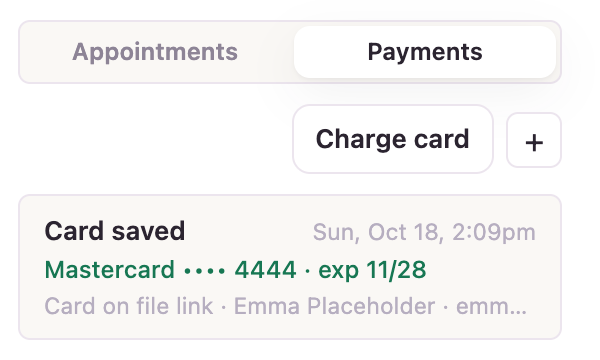
The Payments tab lists everything for this lead: Card saved with the card type and last four digits, or Paid with the amount.
Charging a no-show fee
If a patient with a saved card doesn't show and your clinic charges a no-show fee:
Open the Payments tab and click Charge card.
Pick the saved card, enter the amount, and what it's for ("No-show fee").
Click Yes, charge.
The charge shows in the thread so the whole team can see it. Only charge what your clinic's policy says, and only after you've recorded the No-show.
Your clinic must connect Stripe first
Payment links run through your clinic's Stripe account. If you see "Stripe isn't connected", ask your Forever Booked contact to set it up.
Did this answer your question?
Thanks for your feedback!