Scripts, Templates and the Info Window
Everything you need on a call without leaving the screen
Everything you need to talk to a lead is inside the Contact Center. You shouldn't need a second screen, a printout or a document to copy from.
The Info window
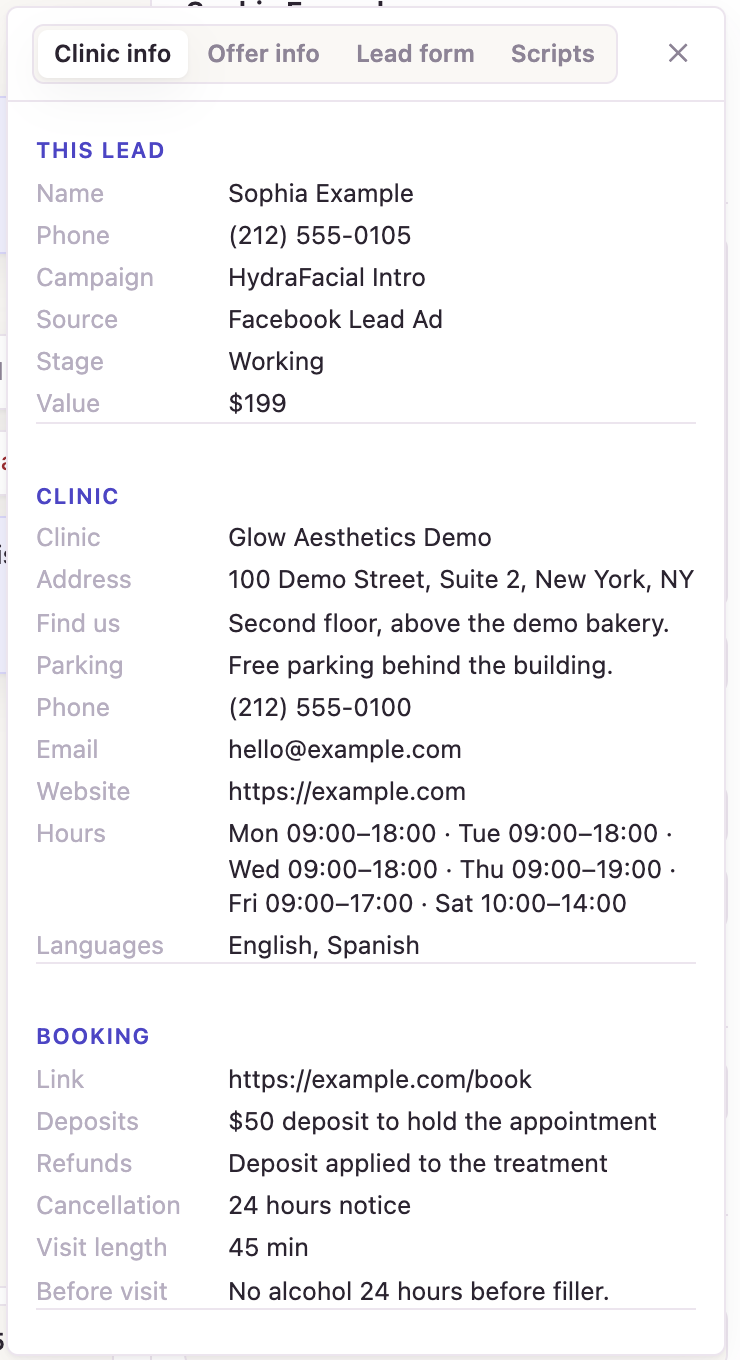
Click Info next to the Call button. It also opens on its own when you start a call. It has four tabs:
Clinic info: this lead's details, then your clinic's address, parking, hours, booking and deposit policy, services and FAQs. Use it to answer questions on the spot.
Offer info: the offer the lead came in on, and what it includes.
Lead form: exactly what the lead answered on the form, like which treatment they want. Read this before you dial.
Scripts: your clinic's call scripts, with the lead's name and your clinic filled in.
You can drag the window anywhere on the screen, and it stays open while you talk.
Templates
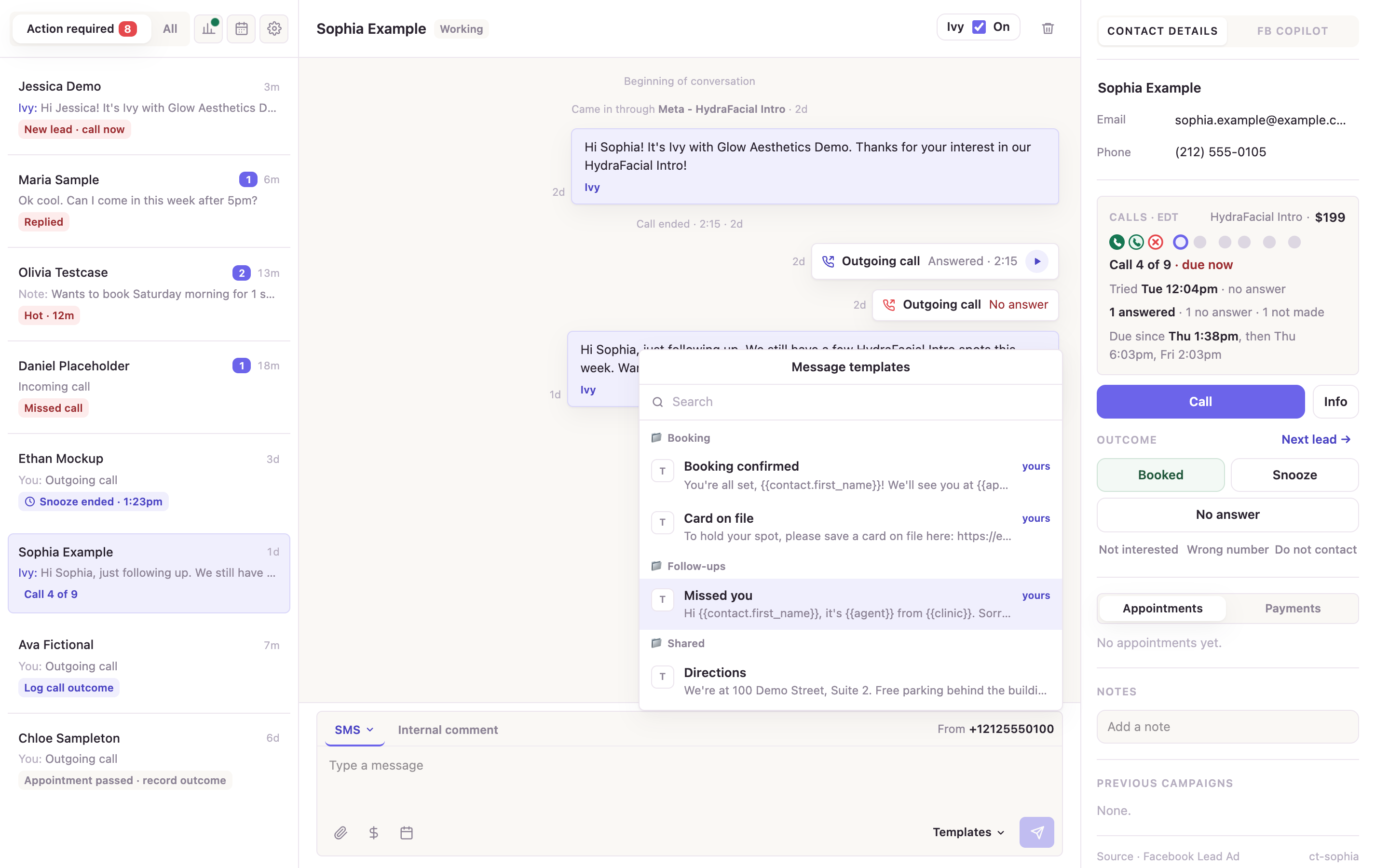
Templates are saved texts you send in one click, like the Before call heads-up text. To use one, click Templates in the message box, or type / at the start of a message, then search or pick from Recent.
Templates fill in the lead's name, your clinic and other details for you, so never copy and paste from a document: it's slower and you'll end up fixing names by hand.
Managing scripts and templates
The gear icon at the top of the list opens Conversation settings. Under Call scripts and Templates, your clinic can add, edit and organize them in folders. If you find yourself typing the same message often, ask for it to be added as a template.
Did this answer your question?
Thanks for your feedback!