
How To Optimize Google Listing
Optimizing your Google Business page is the most essential activity for improving your local SEO results.
Checklist you can copy and follow along can found here! GBP Checklist
Optimized VS Unoptimized Google Business Listing:
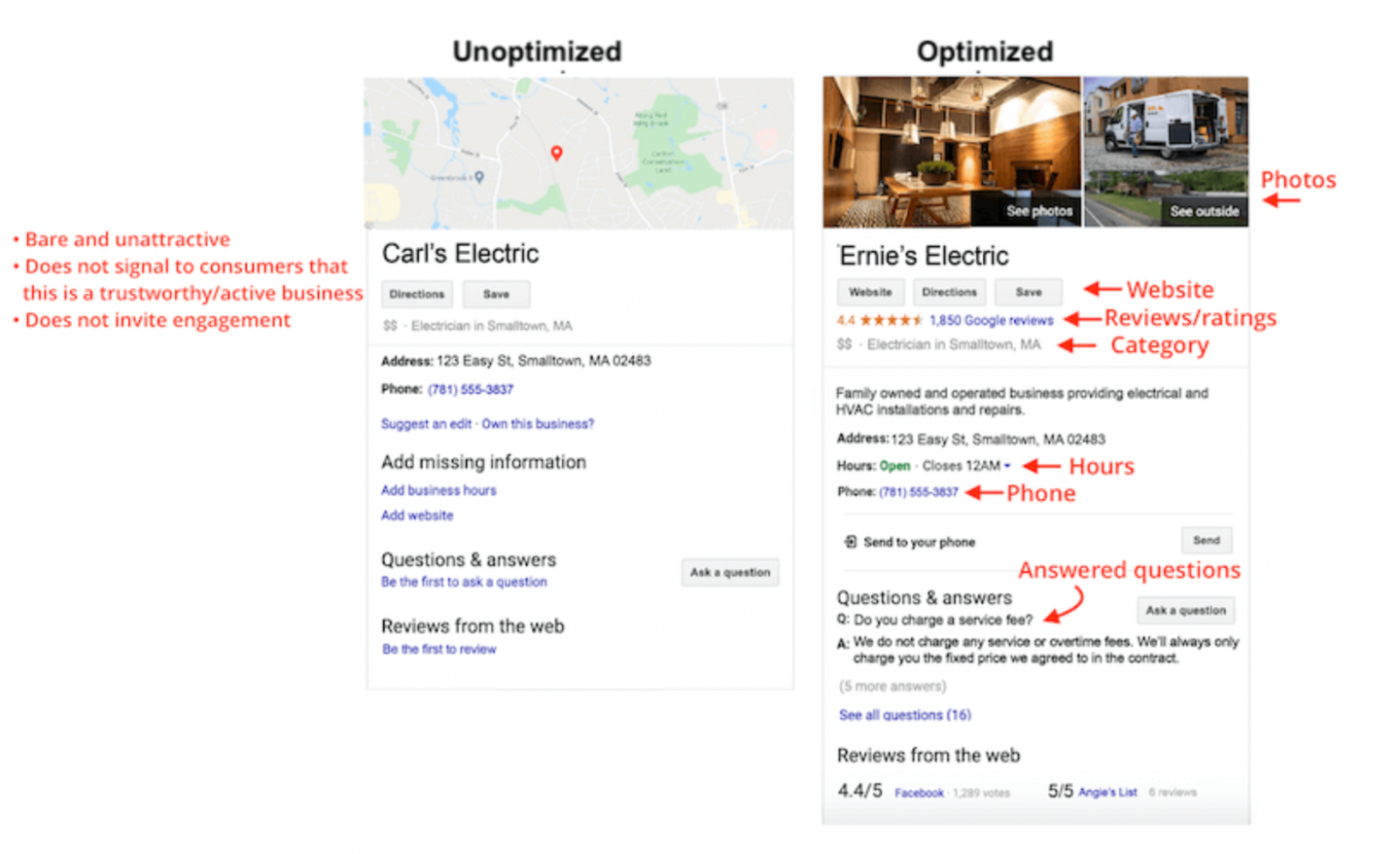
Many companies neglect their Google listing and miss out on free traffic. However, this process is simple, and can be completed quickly by following the checklist below:
Google Listing Optimization Checklist
Step 1: Create Or Claim Your Listing (If Not Already Done)
Step 2: Complete Every Section Of “Edit Profile”
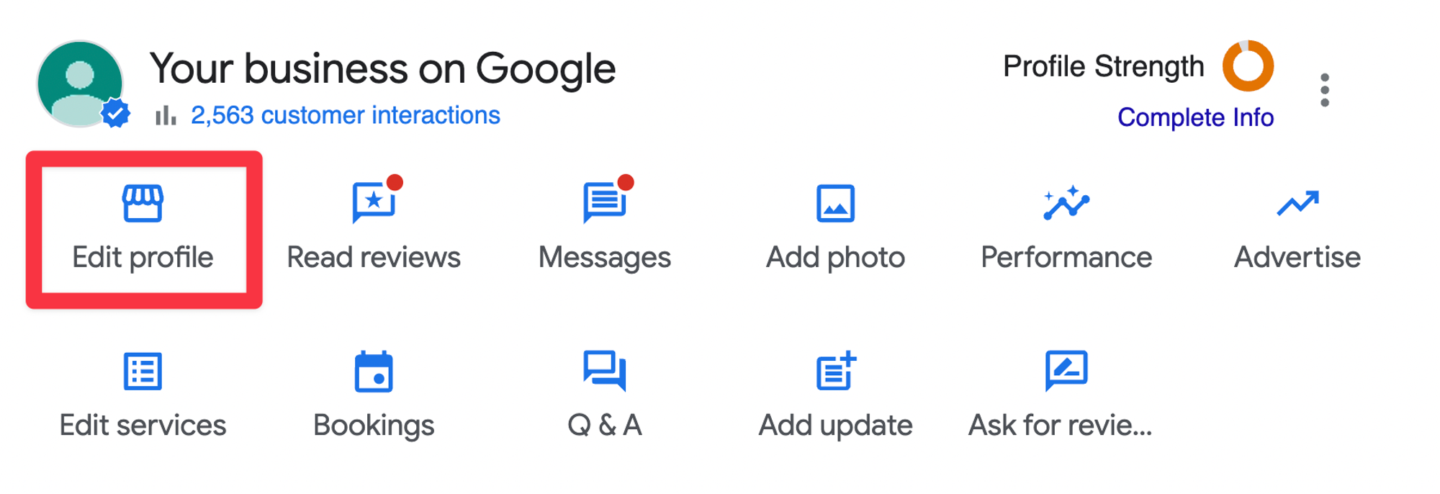
- If you are the owner of a listing, you should see this section (see image above) show up at the top of the search results when you search for your business.
- You can also visit https://business.google.com/ which will take you to your business profile manager.
- Most of the fields for filling out your business profile are self-explanatory. Please refer to the notes below for specific instructions.
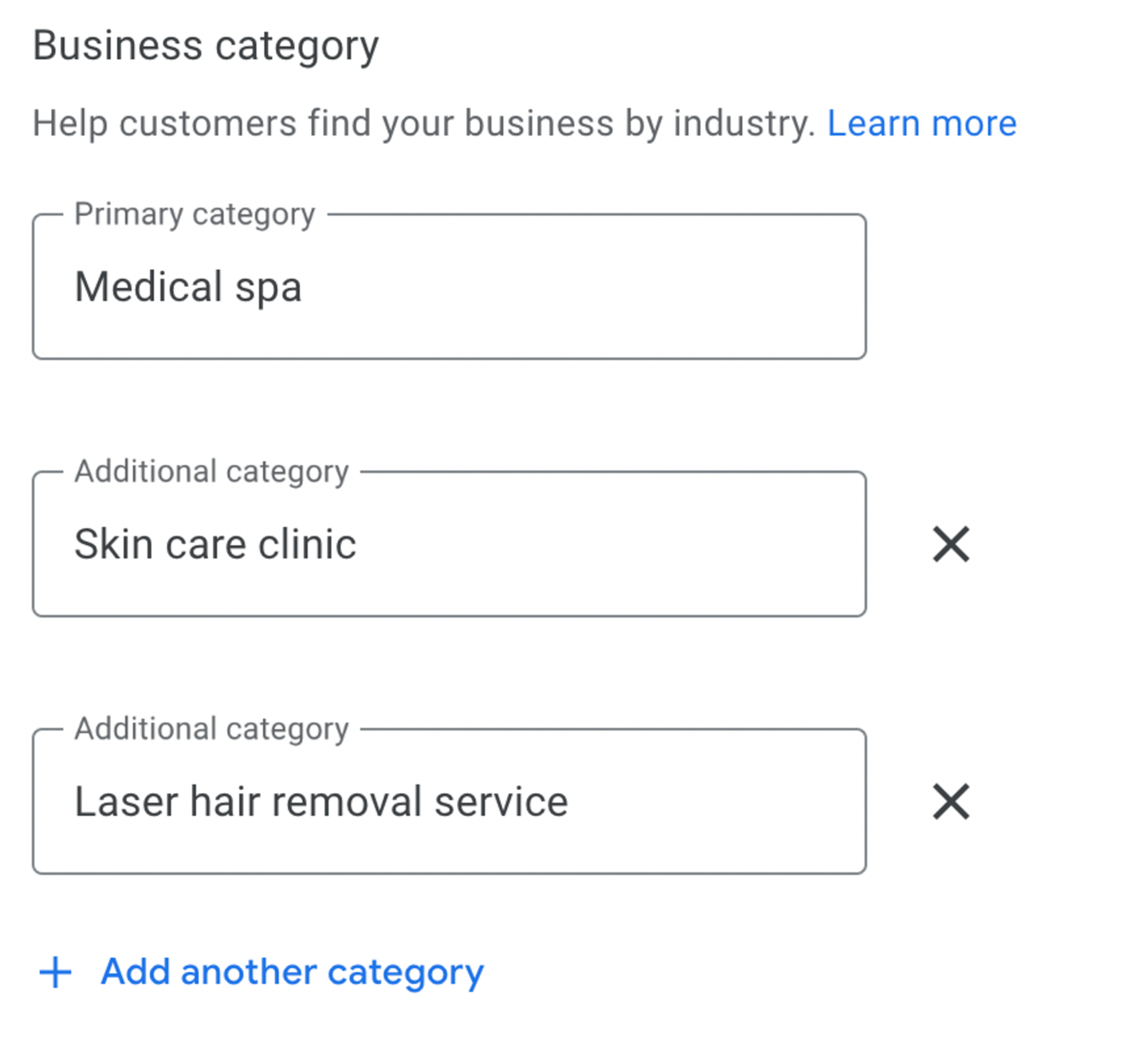
Business Category: Put “Medical spa” as the primary category and add as many other categories as you can.
Description:
Things to include:
- What you offer
- What sets you apart
- Your history
- Anything else that’s helpful for customers to know
Things to avoid:
- Do not include URLs or HTML code.
- Do not exceed 750 characters in the description field.
Example: We are the top Kawartha Lakes medical spa in business since 1993. We offer state-of-the-art, non-surgical cosmetic treatments led by Dr. Peter Ursel. Our focus is on helping you look your best - without looking fake, plastic, or overdone. Whether you’re suffering from unsightly or painful leg veins, unwanted wrinkles, aging skin, or just want to look younger and refreshed, Dr. Ursel and his staff can help you.
Special Hours: Make sure to add any holidays that you’re not open
Menu Link: Leave blank
Step 3: Add Professional Photos
- If you don’t have professional photos, hire a photographer ASAP for a full photoshoot of your office and staff.
- Make sure to also add a cover photo. This will be the main photo that shows up in the search.
- Make sure to include a high-quality logo.
Step 4: Add Services & Products
For products, you can link to your online store, if applicable.
Step 5: Add Bookings
If you have booking software that integrates with Google, you may be able to use the Featured Booking button. If not, you can link to your online booking page if you have one.
Step 6: Answer Q&A and Setup Notifications
- Make sure all questions are answered.
- Make sure to turn on notifications for new questions by going to https://business.google.com/ → Settings.
Step 7: Integrate Google Business With Our Software
This will allow you to see Google reviews come straight into your software, as well as see Google Business stats as well.
-
Go to Settings → Integrations in your software account.
-
Connect your Google account.
Make sure the account you are integrating is the owner of Google My Business Profile.
-
Connect Google Business by selecting the profile you want to integrate.
- Make sure “call tracking” is turned OFF.
-
NOTE: Google Business Chat has been discontinued by Google and is no longer available.
Step 8: Collect & Respond To Google Reviews
- Visit the Google Review System article to start collecting Google reviews.
- Make sure to respond to all reviews as soon as they come in. Failing to respond to Google reviews quickly can hurt your local SEO rankings.